Posting a Calculated Payroll
Transferring to Accounting
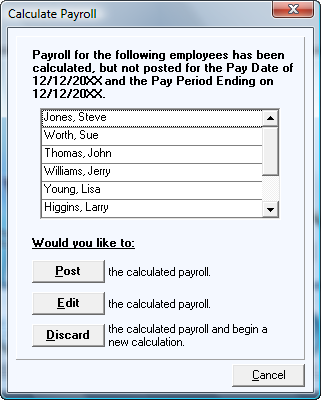
If you have calculated pay but did not transfer it, the program will give you a message when you open the program. To post this to Accounting:
- Click on the Payroll button and select Transfer to Accounting.
- If there is more than one posted pay waiting to be transferred the Pay Date field will have a down arrow and you can select a date to transfer. If there is only one date this field will be grayed out.
- Click on the Transfer button.
Delete Employee/Contractor
Once an employee has had no pay in neither the current year, or in the previous year, you may delete that person's records completely. We recommend retaining the record for five years after terminating.
- Click Sys. Admin. and Delete Employee/Contractor.
- Select either Employee, or Independent Contractor.
- Type (or confirm) the current date.
- Click Next. The system will generate a list of those employees or contractors who have no pay calculated in the current or previous year. Select the person you’d like to delete. Then, click Finish. When an employee is deleted, all information for that employee for all years is deleted.
